Setting Up a Projector for a Golf Simulator
Estimated reading time: 7 minutes
A great golf simulator isn’t just about the launch monitor and software, the projector is what sells the illusion.
The right projector makes fairways look natural, ball flight easy to track, and the whole experience feel “real” instead of like you’re hitting into a dim sheet. BenQ has become a go-to for simulator setups because they offer purpose-built short-throw options (including golf-specific modes and quick setup features), plus models that suit everything from a modest garage build to a premium dedicated room.
Below is a practical, real-world guide to choosing and setting up a projector for your sim — and how to get the best result with popular BenQ models.
Start with the basics.
screen size, throw distance, and safety
Before you buy anything from anyone, there are THREE key things you NEED to know:
ONE | Impact screen size
Most home sims land around the 100″ to 150″+ range depending on room width/height and whether you’re running 4:3, 16:9, or a custom aspect ratio.
TWO | Mounting position (keep it safe!)
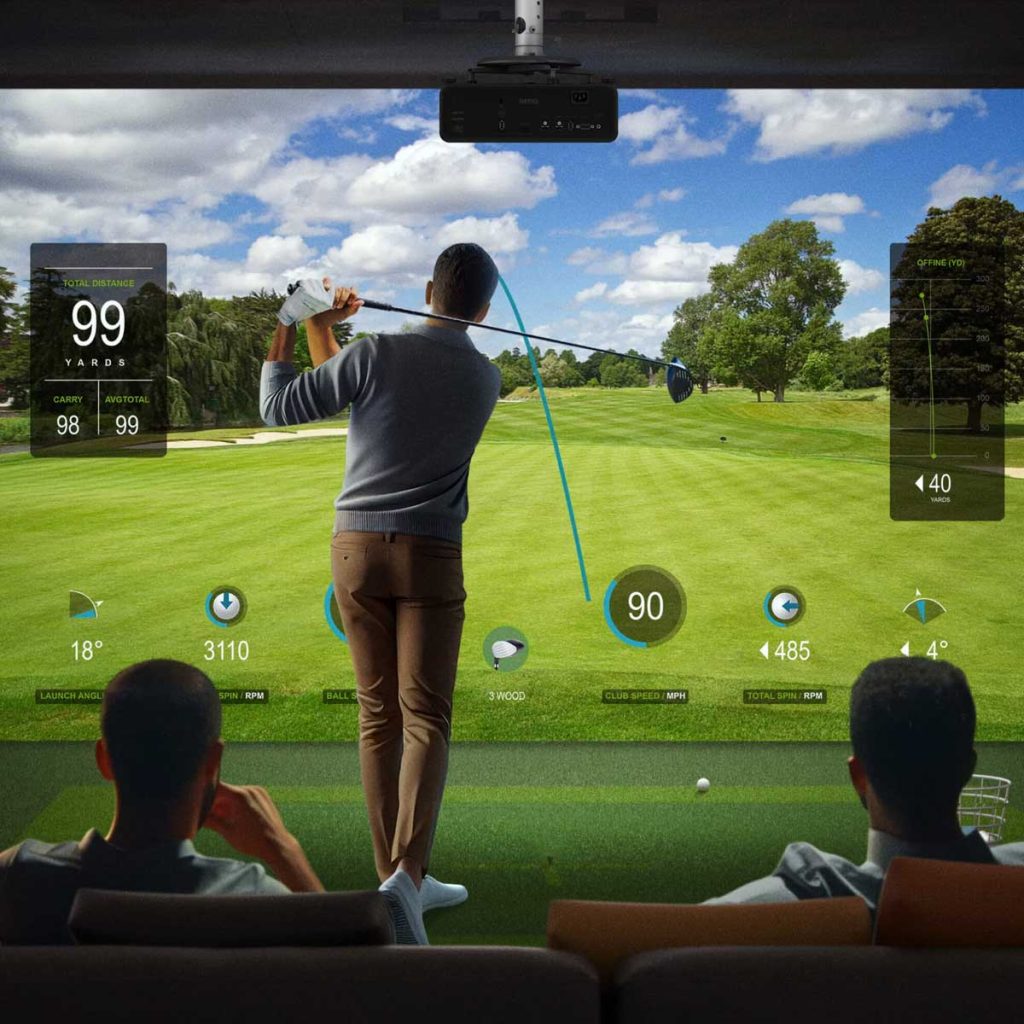
You want the projector out of the hitting zone and ideally behind the golfer to reduce shadows and avoid the unit taking a hit from a sky ball or rebound. This is where short-throw (and “sim-friendly” offset) matters. BenQ’s golf/sim models are specifically positioned to be mounted safely while keeping the hitting area clear.
THREE | Throw ratio
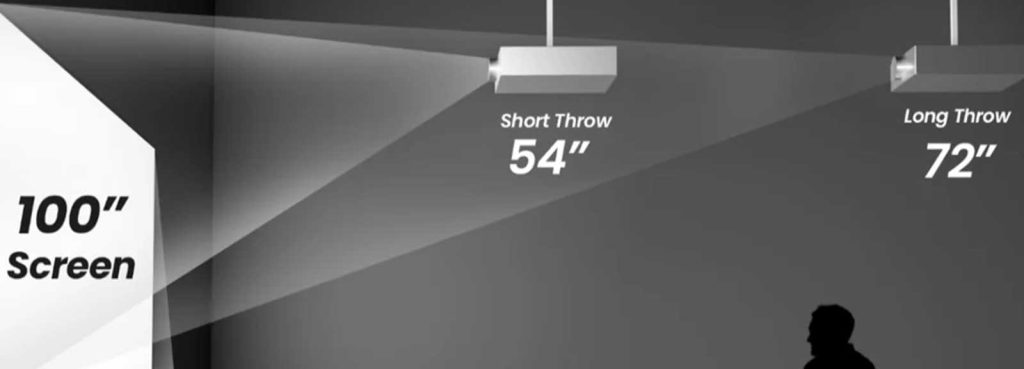
Throw ratio dictates how big an image you can get from a given distance. As a rough guide: the lower the throw ratio, the bigger the image from closer up — which is perfect for tight sim rooms.
For example, BenQ’s AH700ST is a very short throw option (0.69–0.83) intended to sit safely behind the golfer while minimizing shadows.
Choose the right BenQ projector for your simulator style
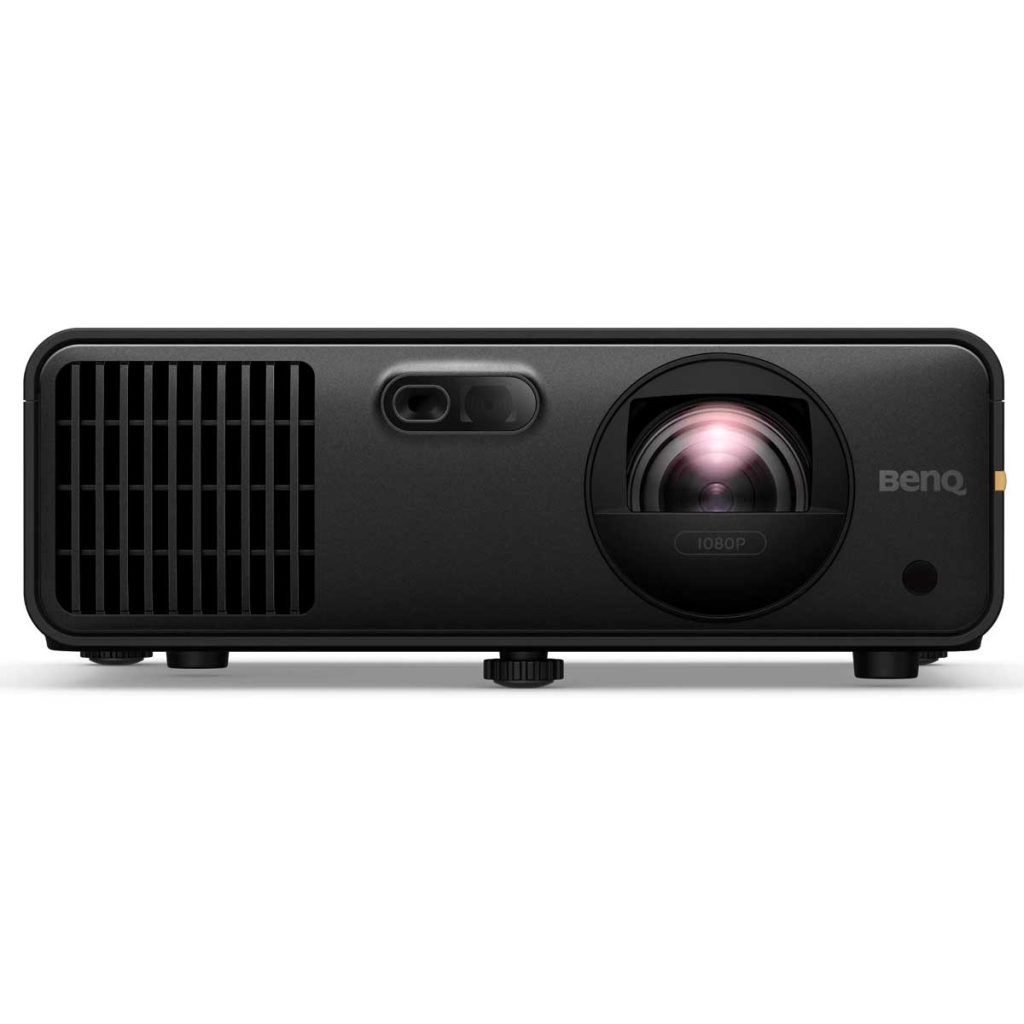
Best “purpose-built” pick for most golf sim rooms: BenQ AH700ST (Laser, 1080p)
If your priority is easy setup + simulator-friendly placement + low maintenance, the AH700ST is a standout. It’s designed for golf simulation, uses a laser light source, and supports short-throw placement (0.69–0.83) with a low offset that helps keep the image aligned when ceiling mounted behind the golfer.
Why it works so well in the real world:
- Short-throw makes it easier to fill the screen without being in the swing path.
- Laser means you’re not constantly thinking about lamp hours.
- Golf-focused convenience features like screen fitting and quick focus reduce fiddle-time.

Premium brightness + 4K detail: BenQ LK936ST (Laser, 4K UHD)
For higher-end builds (bigger screen, more ambient light, “wow” factor), the LK936ST brings serious horsepower: 4K UHD and 5100 ANSI lumens.
This is the model you consider when:
- You want a super crisp image (menus, terrain detail, ball flight)
- Your room isn’t a blacked-out theatre
- You’re building something closer to a commercial-style sim
Key spec highlights:
- 5100 ANSI lumens and 4K UHD (3840×2160)

Budget-friendly lamp option (short throw 1080p): BenQ TH671ST
If you’re building a value-focused sim and can live with a lamp-based projector, the TH671ST is a commonly used short-throw 1080p option. BenQ lists 3000 ANSI lumens and a short throw ratio around 0.69–0.83 (great for tighter rooms).
This is a practical choice when:
- You want a solid image without stepping up to laser pricing
- Your simulator room can be moderately controlled for light
- You’re happy replacing a lamp eventually
What about the BenQ TK700STi (4K short throw)?
The TK700STi has been popular for sims because it combines 4K + short throw (BenQ describes 0.9–1.08 throw) and is positioned as a golf sim option. If you’re aiming for a similar “4K smart” idea, keep an eye on newer TK-series releases (BenQ has continued updating the line).
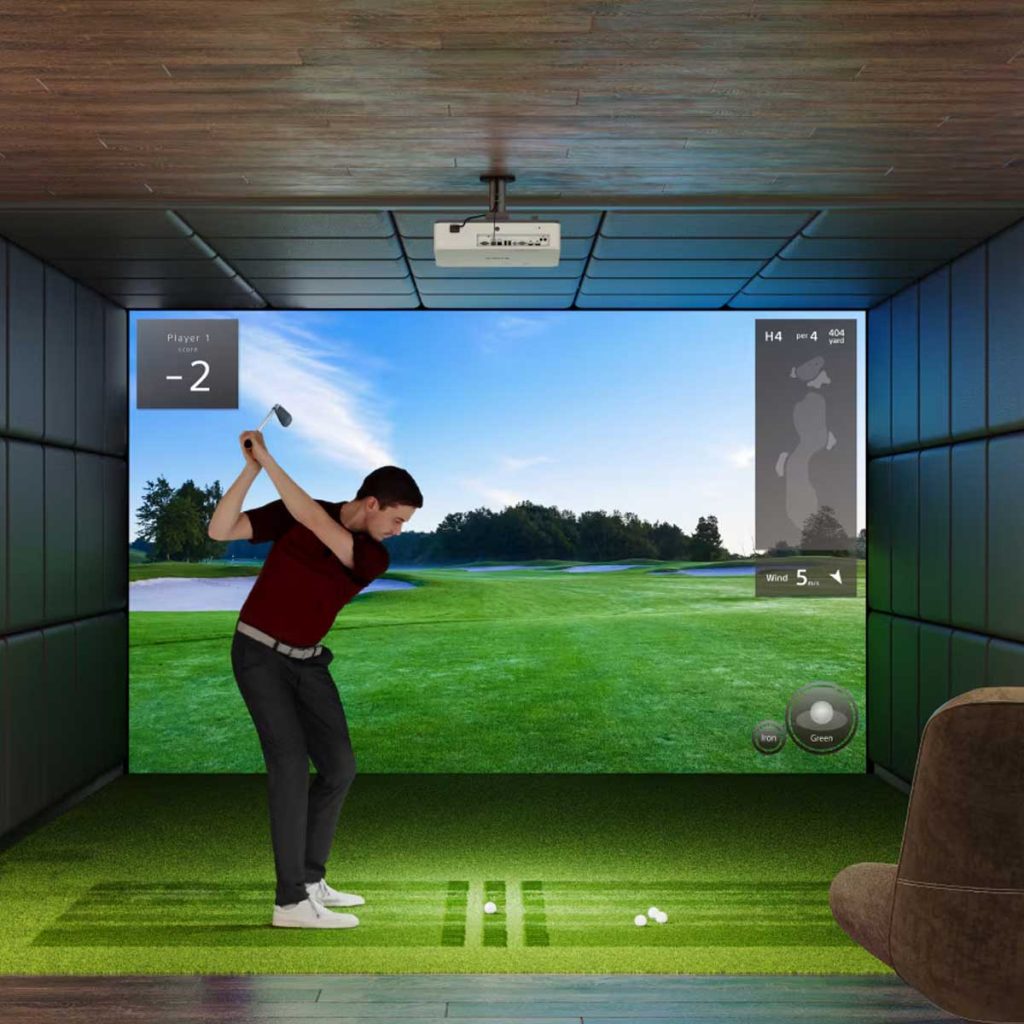
Mounting: ceiling is usually best (and here’s how to get it right).
For most simulator rooms, a ceiling mount is the cleanest and most practical solution:
- Keeps the projector away from traffic (and the kids)
- Reduces the risk of impact damage (watch that golf club…)
- Gives consistent alignment once locked in (no wonky images)
Key mounting tips:
- Centerline the lens to the screen whenever possible (less digital correction needed).
- Aim for minimal keystone. Keystone is convenient, but it’s a digital fix that can reduce effective resolution and add scaling artifacts – not ideal for reading fine detail on course graphics.
- Use the projector’s zoom/throw flexibility first. A model with the right throw ratio makes setup easier than trying to “force it” with keystone.
BenQ’s sim-specific approach emphasizes placing the projector behind the golfer and outside the hit zone to avoid shadows and distractions.
Aspect ratio: match your sim software and screen
Many impact screens are built around 4:3 or 16:10-ish footprints, while many projectors default to 16:9. This isn’t a dealbreaker, you just want to:
- Set your output resolution in the sim PC to match your preferred aspect ratio
- Adjust the projector and software so the image fits the usable impact area cleanly
BenQ’s simulator-oriented features (like auto screen fit on certain models) are designed to help streamline this step.
Brightness and ambient light: why lumens matter in garages
If your sim space is a garage or multi-purpose room, you often have some ambient light (or you simply don’t want to play in total darkness, its a bit strange right). That’s when brightness becomes critical.
As a rule:
- More ambient light + bigger screen = more brightness needed
- Laser projectors also tend to maintain their brightness characteristics more consistently over time than lamps (which gradually dim)
- Think of your lighting and the type of lighting, maybe lighting control
- The better the brightness and contrast, the better the greens look and you feel like you are right there
The finishing touches that make it feel “pro”
Focus and alignment
Take your time here. A slightly soft image makes greens, fairway edges, and UI text look cheap. Use the projector’s focus tools and fine-tune with your mount position before relying on keystone.
Cable runs & connectivity
Plan for:
- HDMI from PC to projector (often via ceiling cable path). Use the goof quality HDMI cable too. Don’t go cheap.
- Power near the mount point, and think where the power is on the unit so it makes sense and there are no “dangling” cables.
- Optional network/control (more common on higher-end installs)
Protect the projector
In sim rooms, dust and impact risk are real. If you’re in a garage, consider basic dust management and make sure the unit sits outside rebound paths. Last thing you need to is to have the mates over and bang, there goes the projector.
NEED HELP?
Give us a call and we can work with you on the correct projector for your setup.
Golf Sim Projectors
-
Epson EB-L790SU WUXGA Short Throw Installation 3LCD Laser Projector
$7,399.00 inc GST -

Sony PRO VPL-PHZ61 Professional Projector
$6,899.00 inc GST -
BenQ AK700ST 4K Short Throw Laser Golf Simulator Projector
Original price was: $5,799.00.$5,599.00Current price is: $5,599.00. inc GST -
Epson EB-L690SE Laser Projector
$7,499.00 inc GST -

BenQ AH500ST Short Throw 1080P Laser Golf Simulator Projector
$3,999.00 inc GST -

Optoma GT2160HDR 4K UHD Short Throw Gaming Projector
$3,399.00 inc GST -

BenQ LU935ST WUXGA Short-Throw Laser Projector
$6,499.00 inc GST -

Panasonic PT-VMZ62 WUXGA LCD Projector
$7,564.00 inc GST -
Epson EB-L690U WUXGA Projector
$5,749.00 inc GST -

BenQ LK936ST 4K HDR Short-Throw Laser Projector
$11,499.00 inc GST -
Optoma GT1080HDR 1080P UHD Short Throw Gaming Projector
Original price was: $2,069.00.$1,999.00Current price is: $1,999.00. inc GST -

BenQ AH700ST Short Throw 1080P Laser Golf Simulator Projector
$3,999.00 inc GST


- Setting Up a Projector for a Golf Simulator
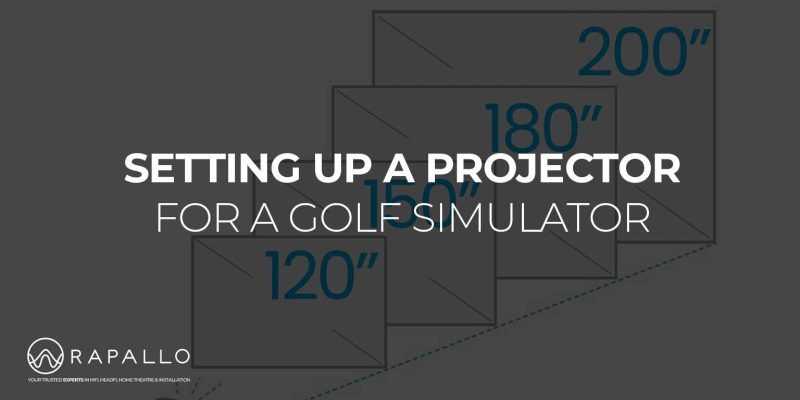 A great golf simulator isn’t just about the launch monitor and software, the projector is what sells the illusion. The…
 - HDMI Cables Explained
 HDMI Cables Explained: What’s the Difference, and what AudioQuest Cables should you use?? Walk into any electronics store or browse…
 - How To Set Up An Audiophile Network Switch
 How to Set Up an Audiophile Network Switch: A Guide for Better Sound Quality As high-resolution music streaming becomes the…
 - Ground Cables and Turntables
 Ground Cables and Turntables, time to separate electrical fact from audiophile folklore – at least we will try. Among the…
 - What Are Planar Magnetic Headphones?
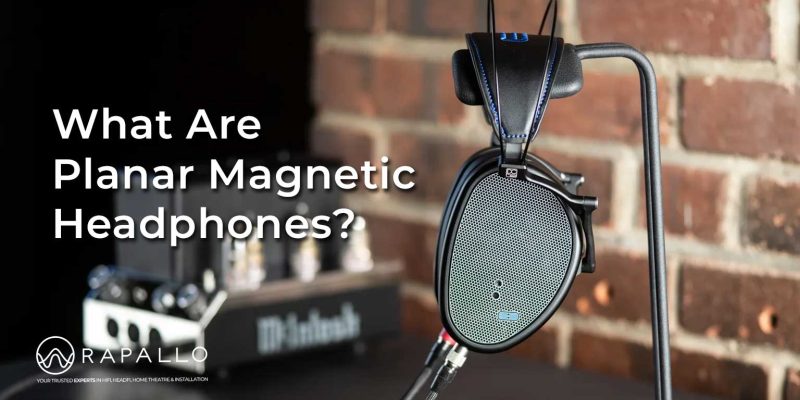 So what are Planar Magnetic Headphones? Here is our guide for curious HeadFi listeners. If you’ve spent any time browsing…
 - Open-Back vs Closed-Back
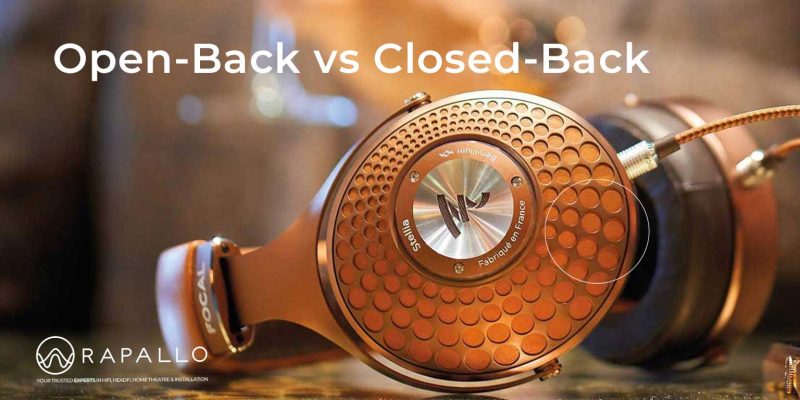 Ah, headphones and Open-Back vs Closed-Back… Your loyal companions through late-night jam sessions, endless Zoom calls, and those “I’m totally…
 NZ AV specialists available to help before or after your purchase
 1,750+ verified product reviews from genuine NZ verified purchasers
 Secure checkout & local warranty, we look after you
 NZ price match on identical products so you know you are getting the right price